

Table of Contents
- Before Resetting: Decide What Needs to Change
- Identify Your Outdoor Light Timer
- How to Reset a Mechanical Outdoor Light Timer
- How to Reset a Digital Outdoor Light Timer
- How to Reset a Photocell Outdoor Light Timer
- When the Timer and Photocell Control the Same Transformer
- How to Reset Astronomical and Smart Outdoor Timers
- Confirm the Reset With Two Separate Tests
- Choose a Schedule That Will Still Make Sense Next Season
- When Another Reset Is Unlikely to Help
- FAQs
To reset an outdoor light timer, identify the control type, correct its clock or clear the necessary settings, restore the ON/OFF schedule, and return it to automatic operation. Mechanical timers usually need their dial realigned. Digital timers may require a reset button or menu command. Photocell timers need the correct light-sensing mode and sensor conditions.
The most useful first step is deciding what has actually gone wrong. A clock error, an unwanted program, and a blocked light sensor require different corrections. Understanding your landscape lighting timer helps you restore normal operation without unnecessarily deleting a working schedule.
Before Resetting: Decide What Needs to Change
“Reset” can describe several different actions:
- Correcting the clock: Changes the current time while keeping the lighting schedule.
- Editing a program: Changes selected ON/OFF events.
- Restarting the controller: Reboots the electronics and may preserve saved settings.
- Performing a factory reset: Returns settings to their defaults, with the exact effect depending on the model.
Start with the smallest change that addresses the symptom. If the lights switch exactly one hour late, check the clock and daylight saving setting before rebuilding every program.
Take a photograph of the display, operating mode, and existing schedule before making changes. Include weekday selections and any sunset offsets. This gives you a reliable reference if settings disappear.
Work with dry hands and keep electrical connections dry. Disconnect power before removing a timer module or accessing wiring. A transformer supplying low-voltage lights still has a mains-voltage input. If an enclosure contains water, shows heat damage, or repeatedly trips electrical protection, stop troubleshooting and have the fault inspected.
Identify Your Outdoor Light Timer
A round dial does not always mean a mechanical clock. Some light-sensing timers use a dial simply to select how many hours the lights remain on.
| What you see | Control type | What to check or reset |
|---|---|---|
| Clock dial with movable tabs, pins, or trippers | Mechanical timer | Current-time alignment and switching positions |
| Screen with CLOCK, PROGRAM, or MODE buttons | Digital timer | Clock, saved events, and automatic mode |
| Small sensor window with dusk-to-dawn or hour selections | Photocell timer | Operating mode, sensor exposure, and duration |
| Date and location settings with sunrise or sunset events | Astronomical timer | Calendar, location, and sunset offsets |
| Schedules managed through an app | Smart timer | Device settings, schedules, and automations |
Use the instructions printed inside the cover or the manual for the exact model. Button names, reset sequences, and memory behavior vary.
How to Reset a Mechanical Outdoor Light Timer
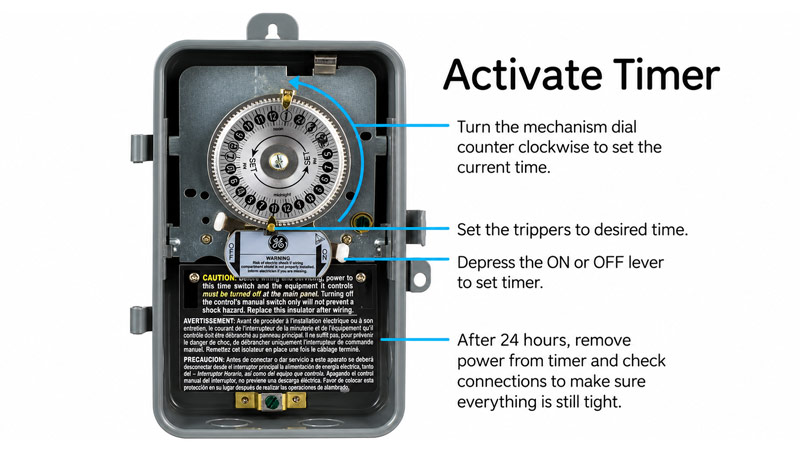
A mechanical timer uses a dial, ON/OFF trippers, and a manual override to schedule outdoor lighting.
Resetting a mechanical timer usually means synchronizing its dial with the current time and checking the positions that control switching.
- Find the current-time pointer. This is usually a fixed arrow beside the rotating dial.
- Turn the dial in the marked direction. Align the correct current time with the pointer. Check the AM/PM markings carefully.
- Inspect the switching positions. Confirm that the ON and OFF trippers, tabs, or segments match your intended schedule.
- Check the override control. If the timer has a continuous-ON setting, return it to the timer or automatic position.
- Confirm that the connected lighting equipment is switched on. The timer needs permission to supply power to the load.
Follow the markings on your timer when positioning segments. Pressed-down tabs mean ON on some models, but that arrangement is not universal. Separate trippers may also use different colors or shapes.
After a power outage, an electrically driven mechanical clock may show an earlier time while its switching positions remain intact. Realigning the dial may be all that is required.
How to Reset a Digital Outdoor Light Timer
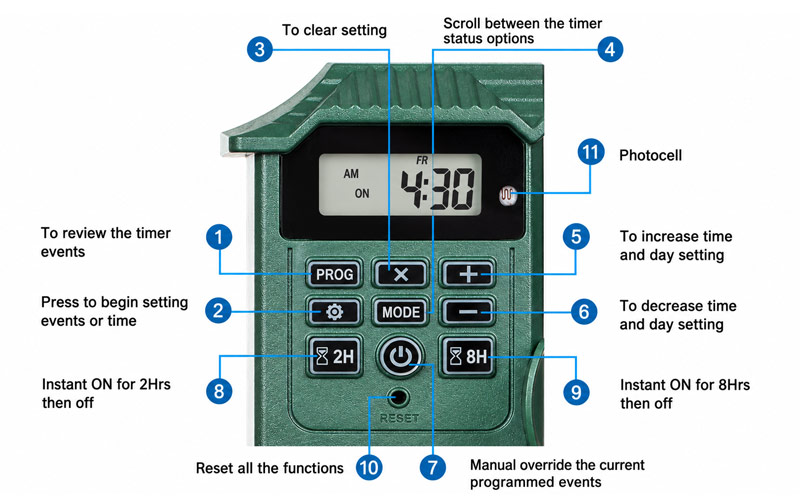
A digital outdoor timer with a reset button, LCD display, and programmable ON/OFF settings.
A digital timer separates the clock, stored programs, and operating mode. Check all three.
1. Confirm Whether a Full Reset Is Necessary
If the display responds normally, inspect the current time and programs first. Correcting an AM/PM error or deleting one unwanted event is usually simpler than starting over.
Use a full reset when you need to clear unknown programming or when the manufacturer specifies it for an operating fault.
2. Use the Model’s Reset Procedure
Look for a labeled RESET button, recessed opening, or reset command in the menu.
Follow the specified button sequence and press duration. Use the tool recommended in the manual for a recessed button, and never probe an unmarked opening.
Do not assume that pressing RESET deletes every program. Some timers distinguish between resetting the clock and clearing stored programming. Others erase both in one operation.
3. Restore the Current Time
Enter the correct:
- Day of the week
- Hour and minute
- AM/PM setting or 24-hour format
- Date, where required
- Daylight saving setting, where available
Check the clock against your phone before moving on.
4. Rebuild One Simple Schedule
Initially, set a landscape lighting schedule with one ON event and one OFF event. For example:
| Event | Time | Days |
|---|---|---|
| ON | 6:00 PM | Every day |
| OFF | 10:30 PM | Every day |
Review both events separately. An ON event assigned to every day and an OFF event assigned only to weekdays can create unexpected weekend operation.
If the schedule crosses midnight, confirm how the timer assigns days. A Friday evening ON event followed by a 1:00 AM shutoff may require the OFF event to be assigned to Saturday.
5. Remove Unwanted Events and Select AUTO
Check for old programs, countdowns, and random modes. Save your changes and return to the normal clock display.
Select AUTO, TIMER, or the equivalent scheduled mode. Leaving the device in permanent ON or OFF prevents normal scheduled switching.
How to Reset a Photocell Outdoor Light Timer
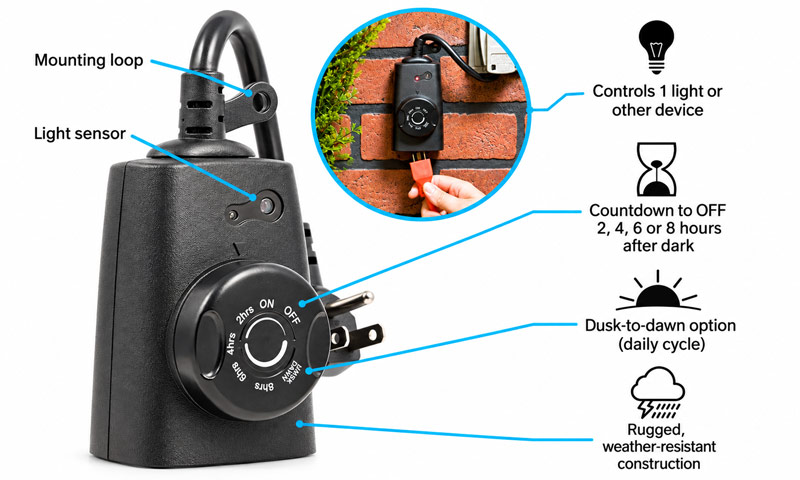
An outdoor photocell timer uses a light sensor and adjustable hours to control lighting from dusk till dawn.
A photocell timer uses ambient brightness to trigger operation. Depending on its features, it may keep the lights on until dawn, run them for a selected duration, or combine dusk activation with a fixed shutoff time.
Because photocell and motion sensor controls respond to different conditions, make sure you are adjusting the correct control.
To restore a photocell timer:
- Check the selected mode. Confirm whether you want dusk-to-dawn operation, a duration after dusk, or a programmed shutoff.
- Inspect the sensor window. Remove surface dirt using the cleaning method allowed by the manufacturer.
- Check its surroundings. A nearby porch light or the controlled fixture itself may illuminate the sensor and prevent dusk detection.
- Reselect the intended operating mode. Restart the controller only if its instructions call for it.
- Test the sensor as directed. Covering the sensor can simulate darkness on models that permit this test. Allow for the specified switching delay, then uncover it.
A “4 HR” setting generally describes four hours after dusk detection. It does not mean the lights switch off at 4:00 AM or 4:00 PM.
When the Timer and Photocell Control the Same Transformer
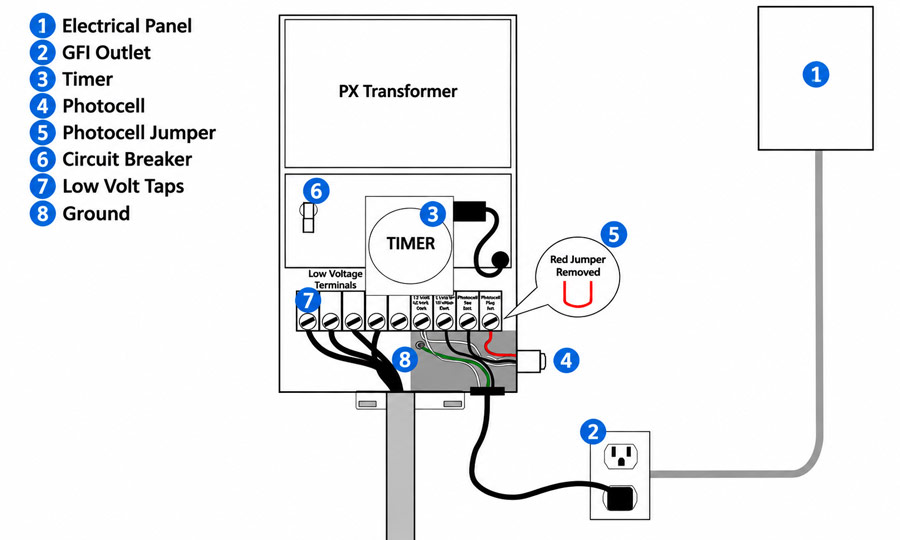
A landscape lighting transformer uses a timer and photocell to control lights based on schedules and ambient light.
Some landscape lighting systems use a timer and a separate photocell together. In a system where both controls must permit operation, a timer showing ON does not guarantee that the lights will illuminate.
For example, imagine a timer that permits operation from 4:00 PM to 11:00 PM while a photocell prevents operation during daylight:
- At 4:30 PM, the timer permits power, but the photocell may still keep the lights off.
- After dusk, both conditions permit illumination.
- At 11:00 PM, the timer ends the operating window.
This arrangement explains why repeatedly resetting a timer can leave the apparent problem unchanged.
For a manufacturer-approved sensor test, the timer may need to be placed temporarily in manual ON while the photocell is covered. Allow its specified delay, then restore normal settings. Do not disconnect or bypass sensor wiring as a routine reset step.
How to Reset Astronomical and Smart Outdoor Timers
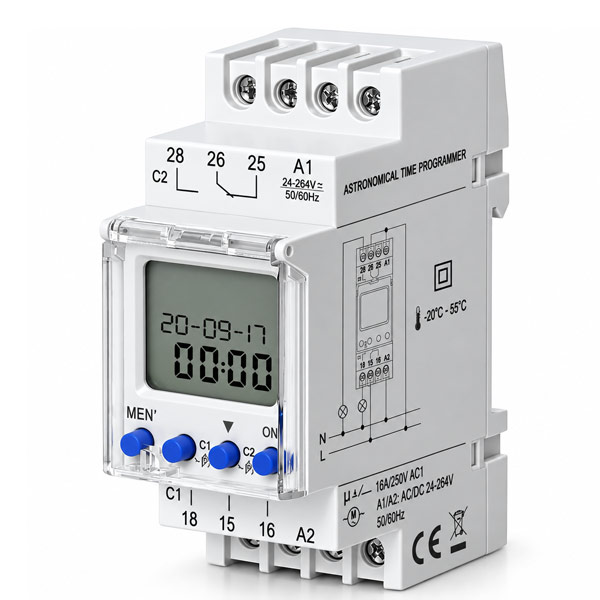
Astronomical Timers
Astronomical timers calculate sunrise and sunset from calendar and location information.
After a reset, confirm the date, current time, location or geographic zone, daylight saving setting, and any sunrise or sunset offset. Follow the model’s terminology: a geographic zone used for sunset calculations may differ from a time zone.
A correctly displayed clock does not confirm that the sunset calculation is correct. Check the location settings before changing an otherwise suitable lighting schedule.
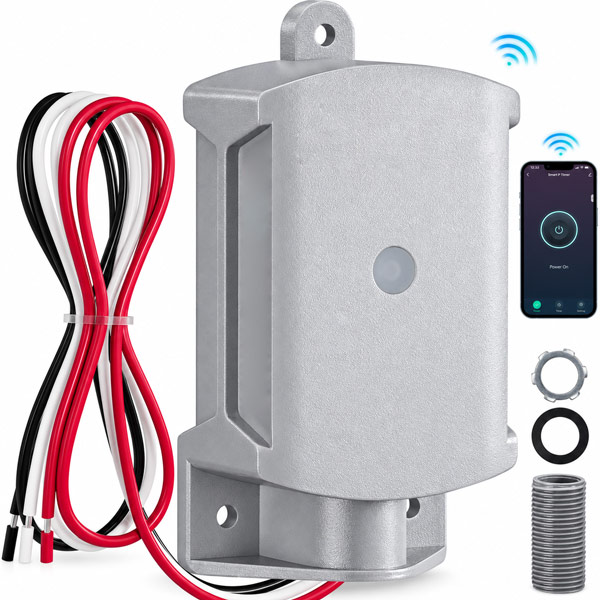
Smart Timers
Begin by reviewing the device’s schedule and any separate automations controlling it.
Temporarily disable competing rules, confirm the device’s time zone and location, and test one simple schedule. If the controller needs a restart, use the app’s restart command or the manufacturer’s power-cycle procedure.
Reserve factory resetting for situations covered by the device instructions. It may require reconnecting the controller and rebuilding settings afterward.
Also inspect rules outside the timer’s own schedule. A scene, household routine, or second user’s automation can issue another command after your reset.
Confirm the Reset With Two Separate Tests
A successful reset needs evidence that the lights can operate and that the schedule can control them.
Test 1: Manual Operation
Use the timer’s normal manual control to turn the lights on and off.
If they respond, you have confirmed that the system can operate under those test conditions. A separate sensor may still affect the result, so account for any additional controls.
Test 2: Automatic Switching
For a digital timer that supports short test events:
- Set an ON event a few minutes ahead.
- Set an OFF event several minutes later.
- Assign both to the current day.
- Select AUTO and observe both transitions.
- Remove the test events and restore your intended schedule.
Use the timer’s available time increments and leave enough time to save each setting.
Returning to AUTO may not immediately change the lights to the state you expect. Some timers maintain their existing state until the next programmed event. Observing an actual ON or OFF transition gives you stronger evidence than repeatedly switching between operating modes.
For a mechanical timer, use the manufacturer’s recommended verification method and confirm operation at the next scheduled switching point.
Choose a Schedule That Will Still Make Sense Next Season
After restoring the timer, consider whether the original schedule matched your actual needs.
A duration after dusk and a fixed bedtime shutoff produce different results. If dusk occurs at 6:00 PM, a four-hour duration ends at 10:00 PM. If dusk occurs at 8:00 PM, that same duration ends at midnight.
Where supported, sunset ON with a fixed OFF time can suit a garden that needs evening illumination until a consistent bedtime. The activation follows seasonal daylight while the shutoff remains predictable.
Choose settings around when people use the space. Decorative planting, an entrance, and a late-used walkway may have different operating needs. Record the final settings so the next clock adjustment or reset is straightforward.
When Another Reset Is Unlikely to Help
The timing and scope of a failure provide useful clues:
| What happens | What to investigate next |
|---|---|
| Switching is consistently one hour early or late | Clock and daylight saving settings |
| Switching is approximately 12 hours wrong | AM/PM settings |
| Manual operation works, but automatic events fail | Operating mode, event days, and saved programs |
| Only one fixture fails while the others follow the schedule | That fixture, its lamp, and its connection |
| Settings repeatedly disappear | Backup-power requirements, supply interruptions, or controller condition |
| The enclosure is damaged or protection repeatedly trips | An electrical fault requiring inspection |
If lights turn on by themselves after you have verified the intended schedule, look for an additional command source. Record the exact switching time and compare it with saved events, countdowns, and app routines.
Change one setting at a time. This preserves the evidence you need to identify which correction actually solved the problem.
FAQs
1. Can an Outdoor Light Timer Work With LED Lights?
Yes, provided the timer explicitly supports the connected LED load. Check its LED rating and any minimum-load requirement rather than relying only on a general wattage rating.
Some older electronic timers pass a small current through the lighting circuit while off, which can make incompatible LED lamps glow faintly. Reprogramming the schedule will not resolve that compatibility issue.
2. Can One Outdoor Timer Control Multiple Lights or Transformers?
Yes, when the equipment and combined electrical load fall within the timer’s specified switching capacity. Multiple sockets do not necessarily provide independent schedules; check whether they share one controlled channel.
For several transformers, have an installer confirm the input load and switching requirements. Adding together the fixture wattages alone may not adequately establish timer compatibility.
3. Will a Smart Outdoor Light Timer Work Without Wi-Fi?
It depends on where the schedule runs. Some devices can execute locally stored schedules without internet access, while cloud-based automations require a connection.
Power-loss recovery is a separate consideration. A device may need internet access to restore its clock after losing power, even if its schedules normally run locally. Check the model’s offline and restart behavior before relying on unattended operation.
4. Do Solar Garden Lights Use the Same Timer Reset Procedure?
Usually, no. Standalone solar garden lights commonly combine a rechargeable battery, charging controller, and automatic lighting control inside the fixture.
Follow the fixture-specific procedure when you reset solar lights. Check charging conditions and the operating switch first, and remove a battery only when the design and instructions permit it.
5. How Much Electricity Does an Outdoor Light Timer Use?
The amount depends on the timer’s own power consumption and operating features. Check its specifications for operating or standby power, keeping that figure separate from the connected lighting load.
For illustration, a timer drawing a constant 1 watt would consume 8.76 kWh per year:
1 W × 24 hours × 365 days ÷ 1,000 = 8.76 kWh
Multiply that result by your electricity price per kWh to estimate the timer’s annual running cost.
